
Share to Teams
Vouch supports direct integration with Teams, allowing administrators to push advocacy requests to designated collaboration channels.
The following sections outline the configuration process and illustrate the advocate's view within Teams.
Share to Teams
Once a new share or amplification request is live in the Advocacy Portal, the Teams sharing process is consistent across both.
Simply click the share icon on the post and select share to Teams to broadcast the opportunity to your team's workspace.

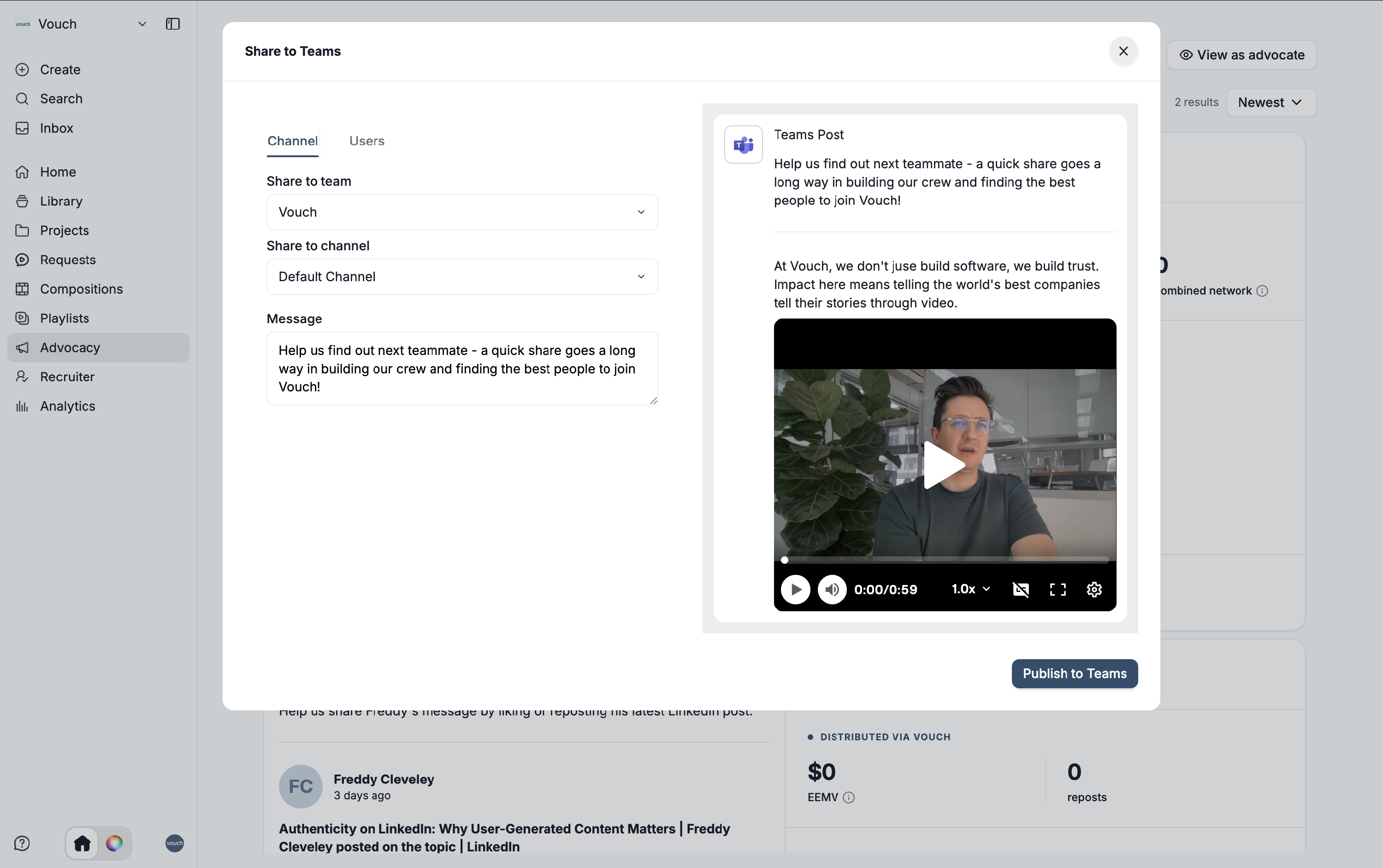
The share to Teams modal allows you to choose your either your target team and channel or individuals you wish to send the request to. If you choose to share to a channel, you will be presented with the option to confirm what channel to publish to and the message to company the request.
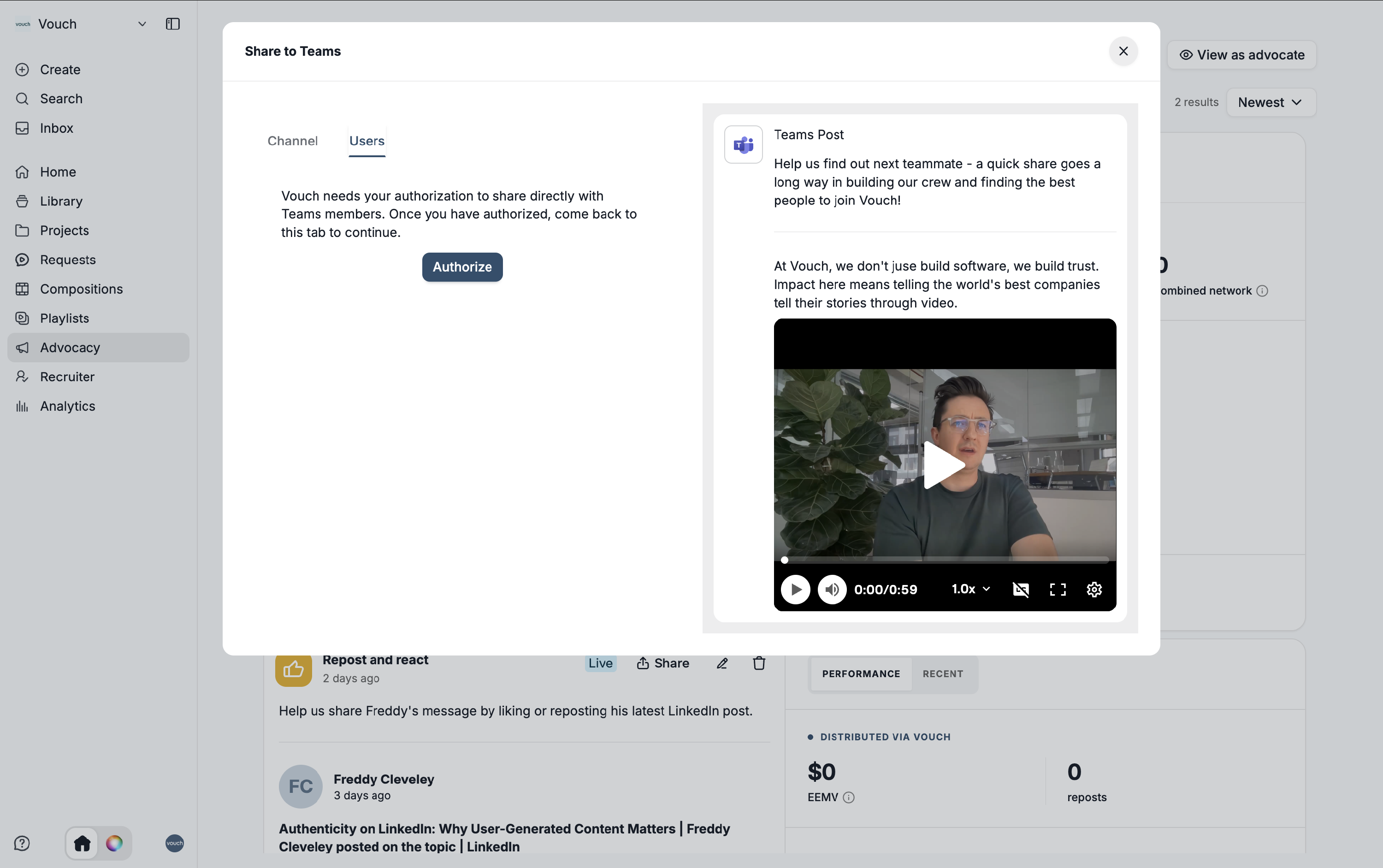
If you choose to share it to individual users, you will need to grant Vouch permissions to send these requests on your behalf the first time. Do this by clicking Authorize.
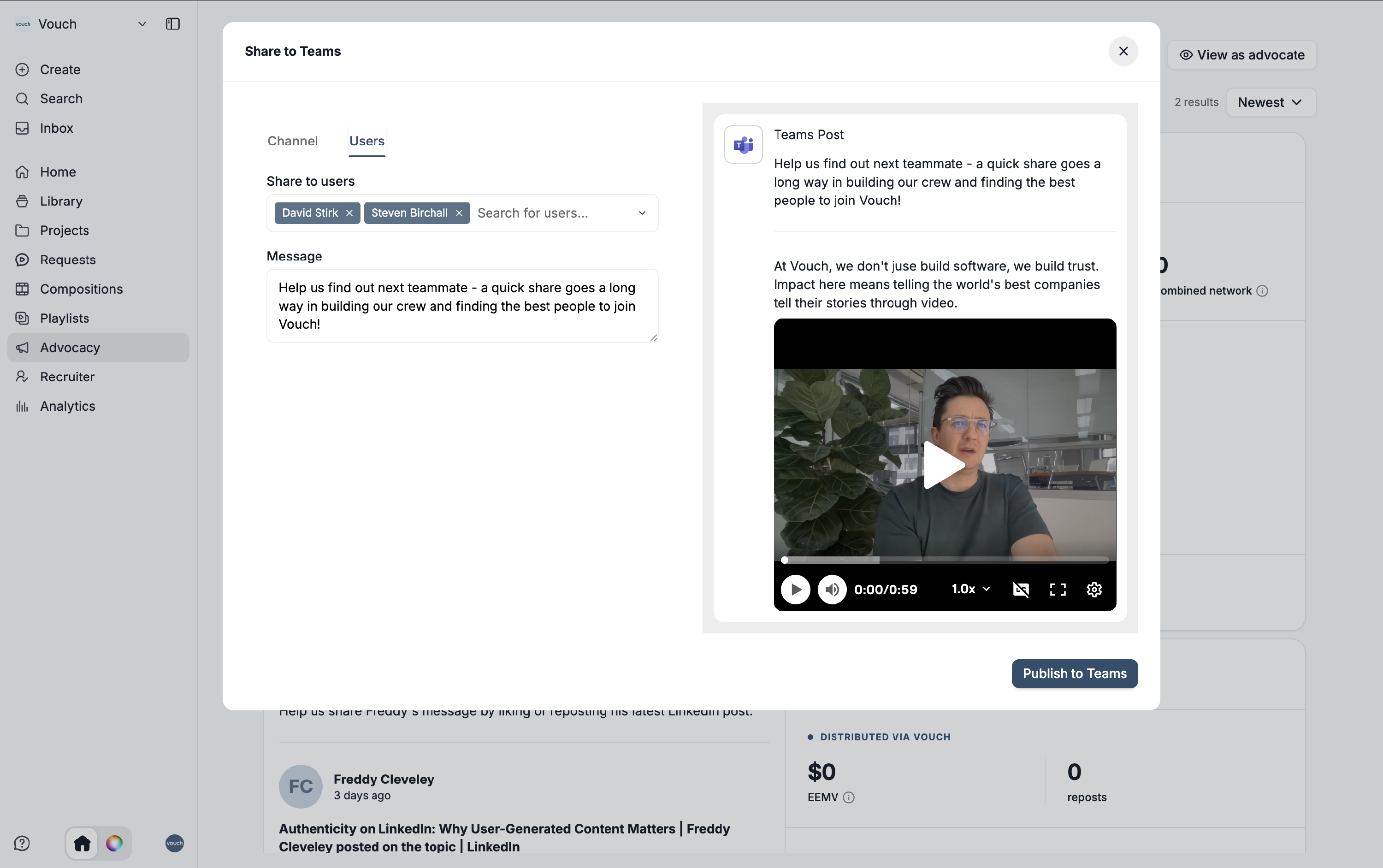
Once authorized, you can add share with anyone on your Microsoft Teams account.
If you're connecting your LinkedIn Company Page feed to Vouch and want Vouch to auto-publish these amplification requests to Teams, click here.
Requests in Teams
Share requests
The Teams notification provides a full preview of the advocacy request. As shown below, the message includes the CTA, post caption, and asset thumbnail, making the content accessible to all members of the designated Teams channel.
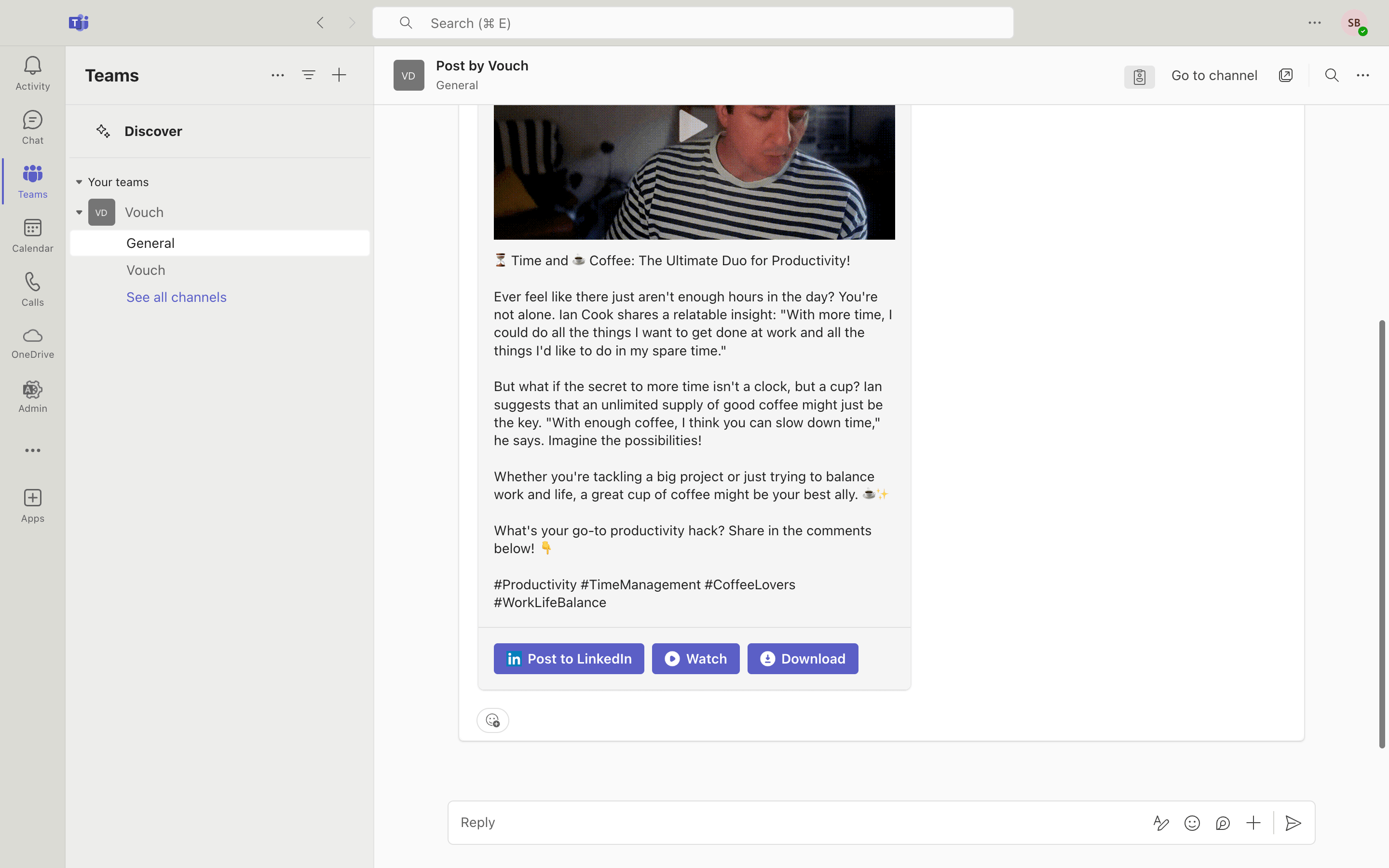
From here, users have the flexibility to post directly to LinkedIn or, if they prefer to share across other platforms, they can download the media asset to upload it manually wherever they like. When a user clicks to post to Linkedin, they'll be given the option to customise the caption and decide where they want to share the post to.
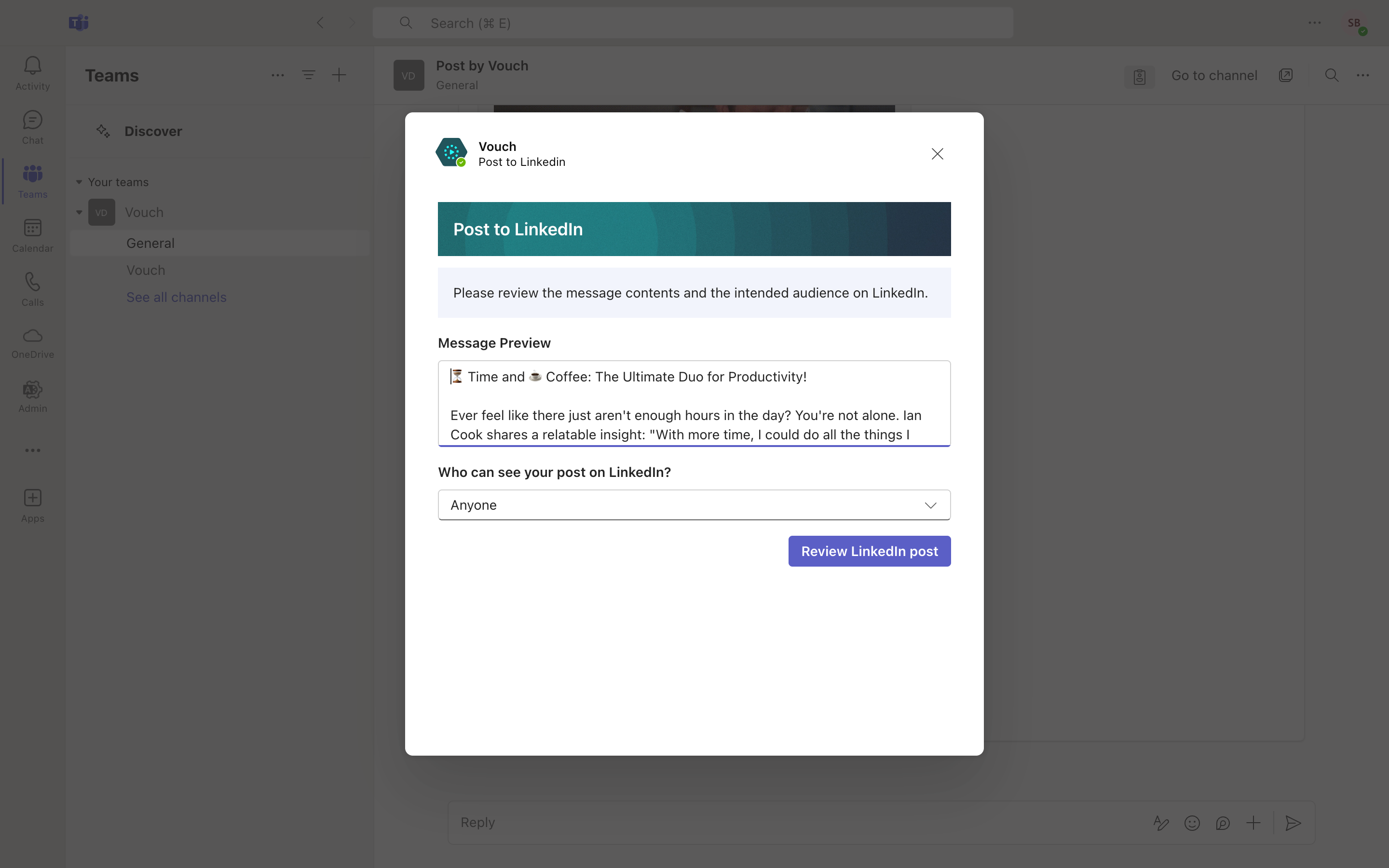
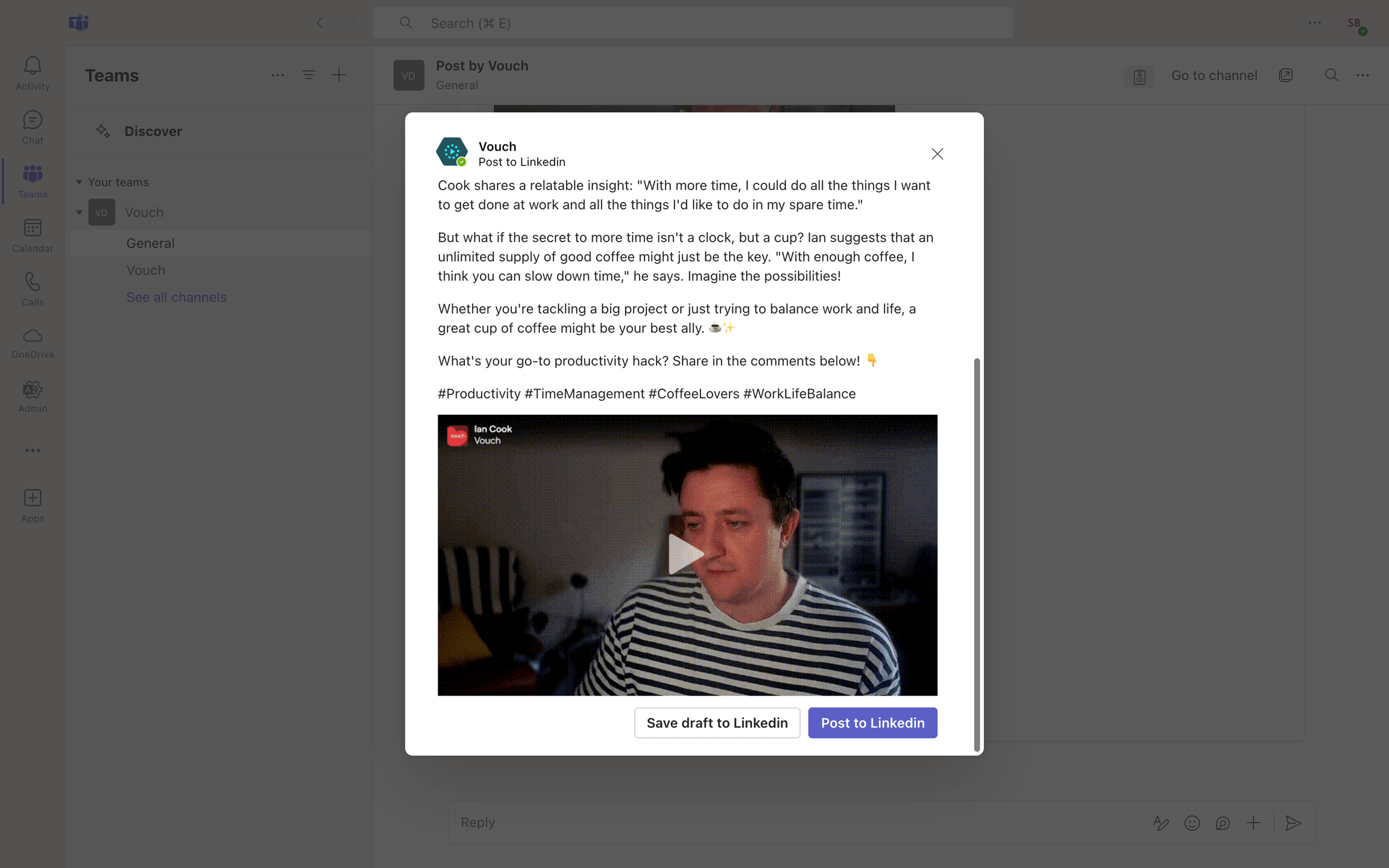
Clicking review opens a final preview window for the users, giving them one last opportunity to check the caption and media before officially publishing the post to their LinkedIn profile.
Amplify requests
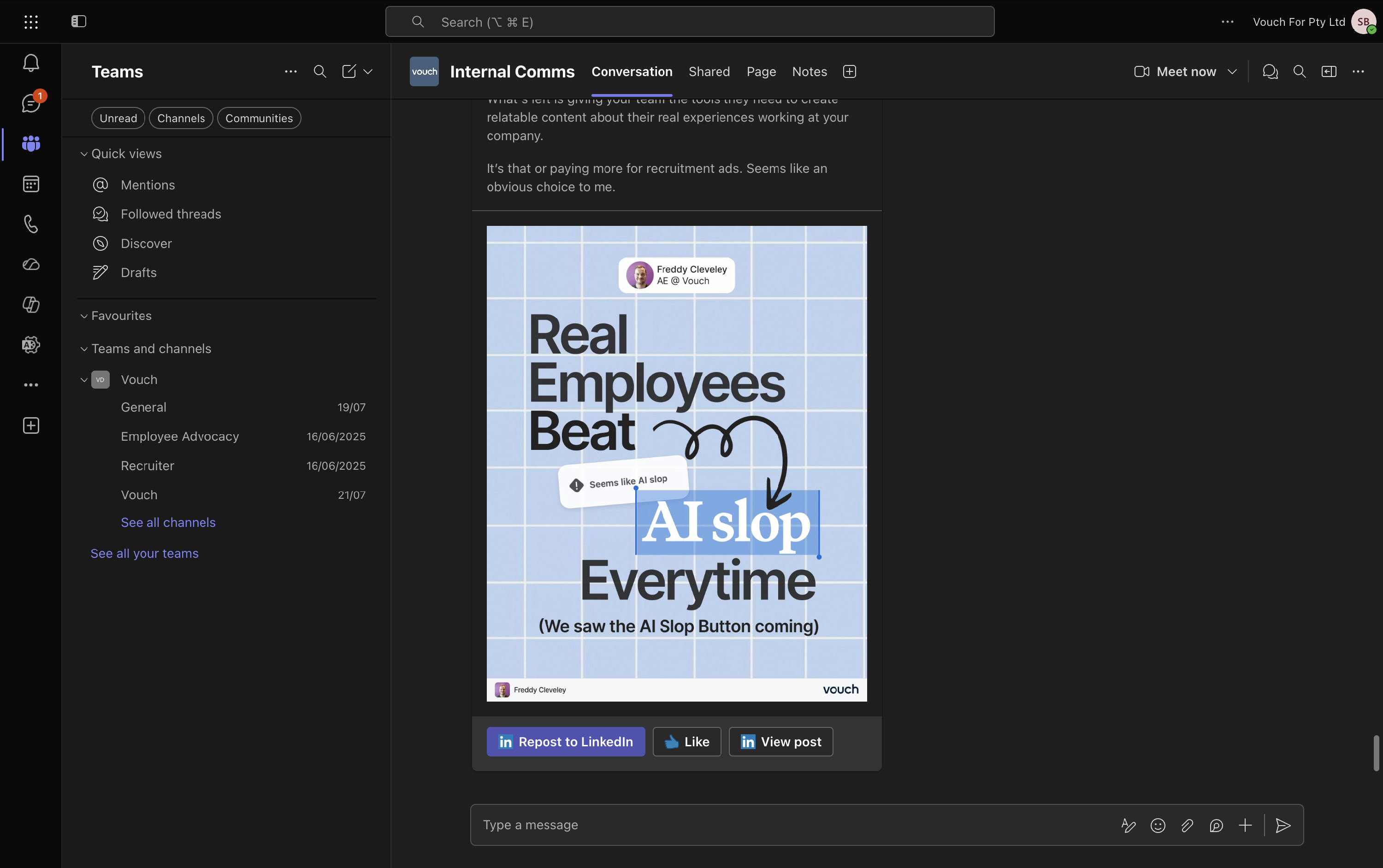
For amplification requests, users will have the opportunity to like or repost straight from LinkedIn.
Depending on the configuration of the Teams app, users may be prompted to confirm their action before liking or reposting.
Microsoft Teams integration
For more information on the Microsoft Teams integration, click here.