
Compositions : Animations
Animations bring text, images, shapes and videos onto the screen with movement, so your composition feels polished rather than static.
Apply an animation
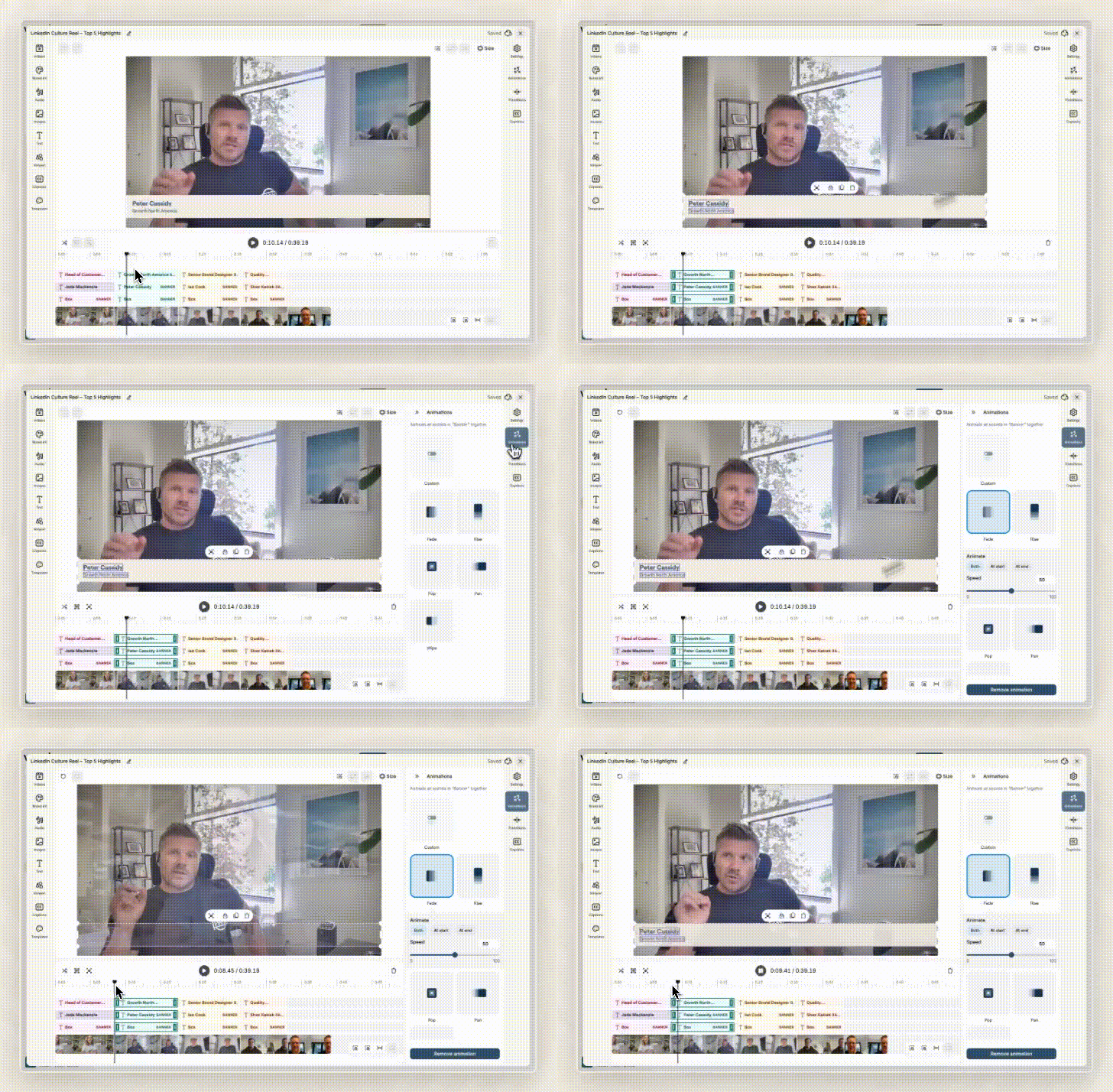
- Select the element in the timeline or on the canvas. You can select several at once with Shift.
- Click Animations in the right-hand menu.
- Choose a preset. The animation is applied straight away. Press Play to preview it.
Animation presets
Vouch offers five animation presets within the Composition editor.
| Preset | Effect | Good for |
|---|---|---|
| Fade | Gently fades in and out | Name titles, logos, quotes |
| Rise | Slides up into place | Lower thirds, captions-style text |
| Pop | Scales up with a quick bounce | Stats, icons, calls to action |
| Pan | Slowly moves across the frame | Still photos and backgrounds |
| Wipe | Reveals from one side | Shapes and banners behind text |
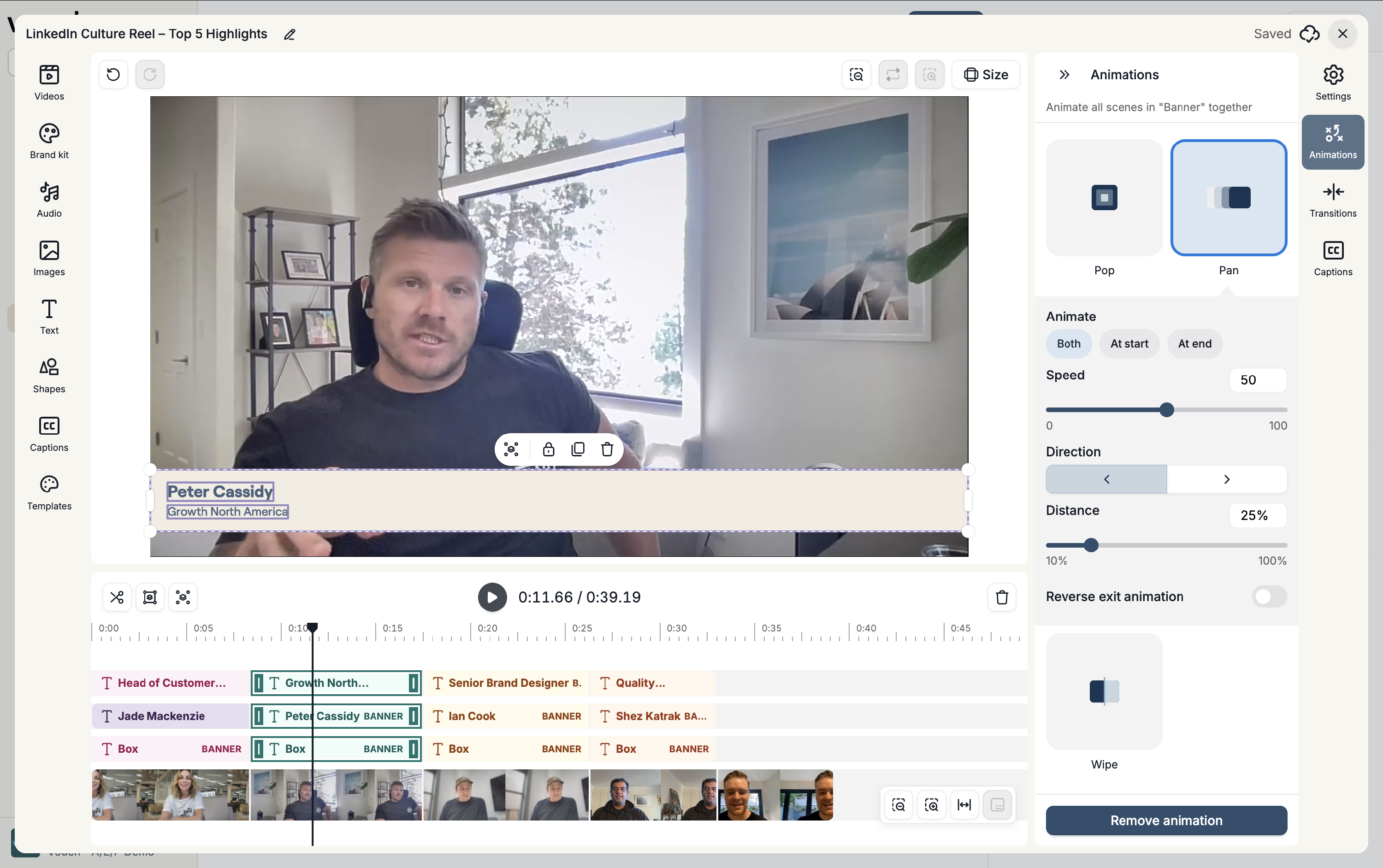
Each preset comes with configurable options, letting you set when the animation runs, how fast it plays, which direction it moves, and whether it reverses on exit.
Change or remove an animation
Select the element and pick a different preset in Animations. To remove it, select the element and press Remove animation from the animation panel.